---
title: Moving Participants Between Statuses
description: Study Statuses enable you to organize participants into custom groups as they move through the screening, enrollment, and event protocol stages of your study. These statuses serve as flexible categori
---
[Skip to content](https://support.enrollnow.io/en/knowledge-base/moving-participants-between-statuses#main-content)
[EnrollNow Support Center](https://support.enrollnow.io/helpdesk?hsLang=en)

- [Support Center](https://support.enrollnow.io/helpdesk)
- [User Community](https://academy.enrollnow.io/)
- [Learning Academy](https://academy.enrollnow.io/)
- [Knowledge Base](https://support.enrollnow.io/en/knowledge-base)
Open main navigation
Close main navigation
- [Support Center](https://support.enrollnow.io/helpdesk)
- [User Community](https://academy.enrollnow.io/)
- [Learning Academy](https://academy.enrollnow.io/)
- [Knowledge Base](https://support.enrollnow.io/en/knowledge-base)
- [EnrollNow Support Center](https://support.enrollnow.io/helpdesk)
How can we help you?
- There are no suggestions because the search field is empty.
1. [EnrollNow Knowledge Base](https://support.enrollnow.io/en/knowledge-base?hsLang=en)
2. [Study Settings](https://support.enrollnow.io/en/knowledge-base/study-settings?hsLang=en)
3. [Statuses](https://support.enrollnow.io/en/knowledge-base/study-settings?hsLang=en#statuses)
July 17, 2026
# Moving Participants Between Statuses
Participant Statuses help your team track each participant’s progress through a study workflow. Users can move participants between Statuses individually or in groups, associate Events with Statuses, and configure Status Categories and activity settings. Creating and Managing Status information can be found [**here**](https://support.enrollnow.io/en/knowledge-base/statuses-overview?hsLang=en).
### Moving Participants Between Statuses
Participants can be moved to a different Status using several methods within EnrollNow.
#### **Use the Profile Card Drop-Down**
To move an individual participant:
1. Locate the participant’s profile card.
2. Select the Status drop-down menu.
3. Choose the participant’s new Status.
#### **Select a Single Participant from Dashboard**
You can also move one participant by selecting their name on the Dashboard:
1. Select the checkbox next to the participant’s name.
2. Open the Status drop-down menu on the Dashboard.
3. Choose Action by selecting the new Status to move the participant into.
4. Click Apply.
#### **Select Multiple Participants in One Category**
**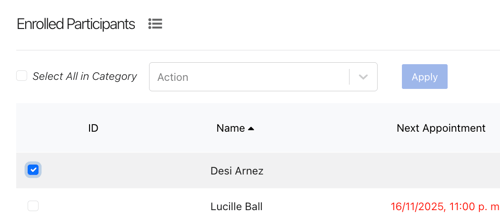**
To move several participants at the same time:
1. Select the checkbox next to one participant in the status you want to update.
2. Status drop-down will appear at the top of that section.
3. Check the box "Select All in Category" to the left of the Status drop-down menu on the Dashboard.
4. Choose Action by selecting the new Status to move the group into.
5. Click Apply.
The selected Status will be applied to all chosen participants.
#### **Select All Participants on the Dashboard (Potential or Enrolled)**
**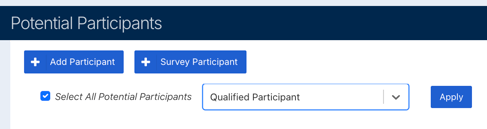**
You can select all participants displayed on the Potential Participants or Enrolled Participants Dashboard and move them to the same Status.
1. Select the checkbox at the top of the participant list.
2. Check the box "Select All Potential/Enrolled Participants" to the left of the Status drop-down menu to select all.
3. Choose Action by selecting the new Status to move the group into.
4. Click Apply.
This action updates all selected participants simultaneously.
#### **Select Multiple Participants Across Statuses**
**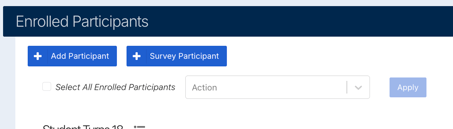**
To move participants assigned to various statuses on the dashboard:
1. Locate the Participants on the Dashboard.
2. Check the box to the left of the Participants to be moved.
3. Choose Action (at the top of dashboard) by selecting the new Status to move the chosen participants into.
4. Click Apply.
All selected participants will be moved to the new Status at the same time.
### **Associating Events with Statuses**
In EnrollNow, you can assign **Events** to specific participant **Statuses**, simplifying the process of managing study workflows. This feature helps users identify which Events should be completed or scheduled based on a participant’s current Status.
This capability supports:
- **Protocol Branching**: Tailor workflows to match different paths within the study.
- **Study Conditions**: Assign Events based on specific study groups or conditions.
- **Custom Study Needs**: Adapt event scheduling to meet unique requirements.
For detailed guidance on associating Events with Statuses, refer to the additional resources or documentation available within EnrollNow [**Here**](https://support.enrollnow.io/en/knowledge-base/assigning-events-to-statuses?hsLang=en).
### **Status Categories**
When creating or editing a Status, you can assign it to one of several **pre-set Status Categories** (e.g., *Screening - Lost to Follow Up*, *Randomized (Active)*, *Completed*). These categories help you:
- Utilize pre-set Status Categories to group the statuses used in the study.
- Accurately group similar statuses across multiple studies for consistency and reporting.
### **Active vs. Inactive Statuses**
EnrollNow allows you to designate a Status as either **Active** or **Inactive**, based on the participant’s involvement in the study:
- **Active**: Indicates participants currently engaged in the study (e.g., enrolled, assigned).
- **Inactive**: Indicates participants no longer actively involved in the study (e.g., completed, withdrawn, ineligible).
- [My Account](https://support.enrollnow.io/en/knowledge-base/my-account?hsLang=en#main-content)
- [Customer Corner](https://support.enrollnow.io/en/knowledge-base/my-account?hsLang=en#customer-corner)
- [Support](https://support.enrollnow.io/en/knowledge-base/my-account?hsLang=en#support)
- [Users & Permissions](https://support.enrollnow.io/en/knowledge-base/users-permissions?hsLang=en)
- [Registry](https://support.enrollnow.io/en/knowledge-base/registry?hsLang=en)
- [Studies](https://support.enrollnow.io/en/knowledge-base/studies?hsLang=en)
- [Dashboard](https://support.enrollnow.io/en/knowledge-base/dashboard?hsLang=en)
- [Participants](https://support.enrollnow.io/en/knowledge-base/participants?hsLang=en#main-content)
- [Potential/Enrolled](https://support.enrollnow.io/en/knowledge-base/participants?hsLang=en#potential-enrolled)
- [Sex/Gender](https://support.enrollnow.io/en/knowledge-base/participants?hsLang=en#sex-gender)
- [Tasks](https://support.enrollnow.io/en/knowledge-base/tasks?hsLang=en#main-content)
- [Tasks](https://support.enrollnow.io/en/knowledge-base/tasks?hsLang=en#tasks)
- [Recruitment](https://support.enrollnow.io/en/knowledge-base/recruitment?hsLang=en#main-content)
- [Sources](https://support.enrollnow.io/en/knowledge-base/recruitment?hsLang=en#sources)
- [Strategies](https://support.enrollnow.io/en/knowledge-base/recruitment?hsLang=en#strategies)
- [Calendar](https://support.enrollnow.io/en/knowledge-base/calendar?hsLang=en)
- [Survey Creator](https://support.enrollnow.io/en/knowledge-base/survey-creator?hsLang=en#main-content)
- [Tips and Tricks](https://support.enrollnow.io/en/knowledge-base/survey-creator?hsLang=en#tips-and-tricks)
- [Thank you page](https://support.enrollnow.io/en/knowledge-base/survey-creator?hsLang=en#thank-you-page)
- [Question Types](https://support.enrollnow.io/en/knowledge-base/survey-creator?hsLang=en#question-types)
- [Report Builder & Reports](https://support.enrollnow.io/en/knowledge-base/report-builder-reports?hsLang=en#main-content)
- [Reports](https://support.enrollnow.io/en/knowledge-base/report-builder-reports?hsLang=en#reports)
- [Report Builder Basics](https://support.enrollnow.io/en/knowledge-base/report-builder-reports?hsLang=en#report-builder-basics)
- [Study Settings](https://support.enrollnow.io/en/knowledge-base/study-settings?hsLang=en#main-content)
- [Requirements](https://support.enrollnow.io/en/knowledge-base/study-settings?hsLang=en#requirements)
- [Email and Texts](https://support.enrollnow.io/en/knowledge-base/study-settings?hsLang=en#email-and-texts)
- [Display](https://support.enrollnow.io/en/knowledge-base/study-settings?hsLang=en#display)
- [Details](https://support.enrollnow.io/en/knowledge-base/study-settings?hsLang=en#details)
- [Statuses](https://support.enrollnow.io/en/knowledge-base/study-settings?hsLang=en#statuses)
- [Bulk Tasks](https://support.enrollnow.io/en/knowledge-base/study-settings?hsLang=en#bulk-tasks)
- [Events](https://support.enrollnow.io/en/knowledge-base/study-settings?hsLang=en#events)
- [Import/Export](https://support.enrollnow.io/en/knowledge-base/import-export?hsLang=en#main-content)
- [Tips and Tricks](https://support.enrollnow.io/en/knowledge-base/import-export?hsLang=en#tips-and-tricks)
- [study definitions](https://support.enrollnow.io/en/knowledge-base/import-export?hsLang=en#study-definitions)
- [Export](https://support.enrollnow.io/en/knowledge-base/import-export?hsLang=en#export)
- [API](https://support.enrollnow.io/en/knowledge-base/api?hsLang=en)
- [FAQs & Troubleshooting](https://support.enrollnow.io/en/knowledge-base/faqs-troubleshooting?hsLang=en#main-content)
- [Ripple Performance](https://support.enrollnow.io/en/knowledge-base/faqs-troubleshooting?hsLang=en#ripple-performance)
- [Security Settings](https://support.enrollnow.io/en/knowledge-base/faqs-troubleshooting?hsLang=en#security-settings)
- [Reuse Custom ID](https://support.enrollnow.io/en/knowledge-base/faqs-troubleshooting?hsLang=en#reuse-custom-id)
- [Internal Server Error - Importing](https://support.enrollnow.io/en/knowledge-base/faqs-troubleshooting?hsLang=en#internal-server-error-importing)
- [Account Lock out](https://support.enrollnow.io/en/knowledge-base/faqs-troubleshooting?hsLang=en#account-lock-out)
- [FAQ](https://support.enrollnow.io/en/knowledge-base/faqs-troubleshooting?hsLang=en#faq)
- [Calendar Integration Issues](https://support.enrollnow.io/en/knowledge-base/faqs-troubleshooting?hsLang=en#calendar-integration-issues)
- [e-consent downloads](https://support.enrollnow.io/en/knowledge-base/faqs-troubleshooting?hsLang=en#e-consent-downloads)
- [Support Web Pages](https://support.enrollnow.io/en/knowledge-base/faqs-troubleshooting?hsLang=en#support-web-pages)
- [EnrollNow Glossary](https://support.enrollnow.io/en/knowledge-base/faqs-troubleshooting?hsLang=en#enrollnow-glossary)
- [EnrollNow Performance](https://support.enrollnow.io/en/knowledge-base/faqs-troubleshooting?hsLang=en#enrollnow-performance)
- [Security](https://support.enrollnow.io/en/knowledge-base/security?hsLang=en#main-content)
- [Security](https://support.enrollnow.io/en/knowledge-base/security?hsLang=en#security)
- [Ripple Service Status Report](https://support.enrollnow.io/en/knowledge-base/security?hsLang=en#ripple-service-status-report)
- [Workflows and How To's](https://support.enrollnow.io/en/knowledge-base/workflows-and-how-tos?hsLang=en)
- [Site Admin](https://support.enrollnow.io/en/knowledge-base/site-admin?hsLang=en#main-content)
- [Users](https://support.enrollnow.io/en/knowledge-base/site-admin?hsLang=en#users)
- [Export](https://support.enrollnow.io/en/knowledge-base/site-admin?hsLang=en#export)
- [Security](https://support.enrollnow.io/en/knowledge-base/site-admin?hsLang=en#security)
- [Audit Logs](https://support.enrollnow.io/en/knowledge-base/audit-logs?hsLang=en)
- [Product Release Notes](https://support.enrollnow.io/en/knowledge-base/product-release-notes?hsLang=en#main-content)
- [2026](https://support.enrollnow.io/en/knowledge-base/product-release-notes?hsLang=en#2026)
- [2025](https://support.enrollnow.io/en/knowledge-base/product-release-notes?hsLang=en#2025)
- [2024](https://support.enrollnow.io/en/knowledge-base/product-release-notes?hsLang=en#2024)
- [2023](https://support.enrollnow.io/en/knowledge-base/product-release-notes?hsLang=en#2023)
- [2022](https://support.enrollnow.io/en/knowledge-base/product-release-notes?hsLang=en#2022)
- [2019-2021](https://support.enrollnow.io/en/knowledge-base/product-release-notes?hsLang=en#2019-2021)
[](http://enrollnow.io)
[Privacy Policy](https://enrollnow.io/legal/privacy-policy)[Terms of Service](https://enrollnow.io/legal/terms-of-service)
Copyright © 2025, EnrollNow
```json
{
"@context" : "https://schema.org",
"@type" : "VideoObject",
"contentUrl" : "https://21554971.fs1.hubspotusercontent-na1.net/hubfs/21554971/video_assets/217392989355/inherited/web_optimized.mp4",
"dateModified" : "2026-07-17T17:24:32.038Z",
"duration" : "PT49S",
"height" : 1534,
"name" : "Moving Participants Status",
"thumbnailUrl" : "https://support.enrollnow.io/hubfs/Moving%20Participants%20Status.mov/medium.jpg",
"uploadDate" : "2026-07-17T17:24:32.036Z",
"width" : 2918
}
```
```json
{
"@context" : "https://schema.org",
"@type" : "VideoObject",
"contentUrl" : "https://21554971.fs1.hubspotusercontent-na1.net/hubfs/21554971/video_assets/217393095837/inherited/web_optimized.mp4",
"dateModified" : "2026-07-17T18:06:56.795Z",
"duration" : "PT14.802S",
"height" : 1534,
"name" : "Status Cetegories",
"thumbnailUrl" : "https://support.enrollnow.io/hubfs/Status%20Cetegories.mov/medium.jpg",
"uploadDate" : "2026-07-17T18:06:56.793Z",
"width" : 2918
}
```