---
title: Search Bar Functionality on Enrolled/Potential Dashboards
description: "The Search Bar on the Potential and Enrolled Participants pages helps users locate participants efficiently: Without "Filter Dashboard" Checked: With "Filter Dashboard" Checked: This dual functionalit"
---
[Skip to content](https://support.enrollnow.io/en/knowledge-base/search-bar-overview#main-content)
[EnrollNow Support Center](https://support.enrollnow.io/helpdesk?hsLang=en)

- [Support Center](https://support.enrollnow.io/helpdesk)
- [User Community](https://academy.enrollnow.io/)
- [Learning Academy](https://academy.enrollnow.io/)
- [Knowledge Base](https://support.enrollnow.io/en/knowledge-base)
Open main navigation
Close main navigation
- [Support Center](https://support.enrollnow.io/helpdesk)
- [User Community](https://academy.enrollnow.io/)
- [Learning Academy](https://academy.enrollnow.io/)
- [Knowledge Base](https://support.enrollnow.io/en/knowledge-base)
- [EnrollNow Support Center](https://support.enrollnow.io/helpdesk)
How can we help you?
- There are no suggestions because the search field is empty.
1. [EnrollNow Knowledge Base](https://support.enrollnow.io/en/knowledge-base?hsLang=en)
2. [Participants](https://support.enrollnow.io/en/knowledge-base/participants?hsLang=en)
3. [Potential/Enrolled](https://support.enrollnow.io/en/knowledge-base/participants?hsLang=en#potential-enrolled)
July 2, 2026
# Search Bar Functionality on Enrolled/Potential Dashboards
The Search Bar on the Potential and Enrolled Participants Dashboard pages helps users locate participants efficiently.
#### **Search and Filter Parameters Available**
- **Contact Phone**
- **Contact Email**
- **Contact Name**
- **Participant Name**
- **Participant Race**
- **Participant Sex/Gender**
- **Participant Ethnicity**
- **Participant Birthday**
- **Contact Zip code**
- **Custom ID**
- **Global ID**
- **Family ID**
- **Tags:** Assigned to Participants
- **Contact for Future Studies:** Whether participants are open to being contacted for future studies.
- **Signed Consent Form:** Status of signed consent.
- **Custom Variables:** Lists each custom variables created for this study.
- **Date Custom Variables-**enter date in mm/dd/yyyy or dd/mm/yyyy depending on the locale set for your study when searching or filtering.
**NOTE:** This flexibility allows users to search or filter participants based on various personal, study-related, or consent-specific details.
### Searching Dashboard Details
To adjust the fields included in a search or dashboard filter:
1. **Input Search Terms**:
- Type the search term into the Search Bar.
- Terms must be spelled correctly but are **not case-sensitive**.
- Searches are limited to **one component** at a time (e.g., name, variable).
2. **Executing a Search**:
- Press the Enter key or click the blue magnifying glass to run the search.
3. **Accessing a Participant**:
- Names matching the search parameters will be populated beneath the search bar.
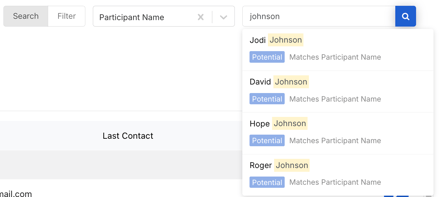
- Click the participant's name in the results to open their **profile card**.
### Filtering the Dashboard
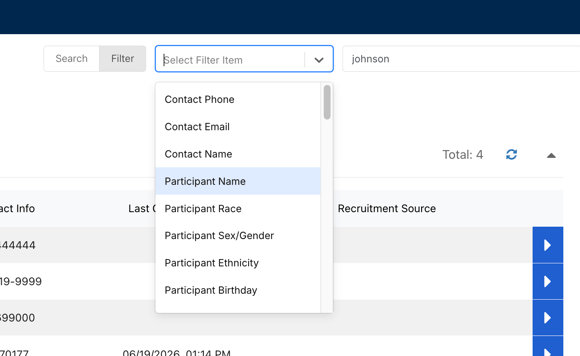
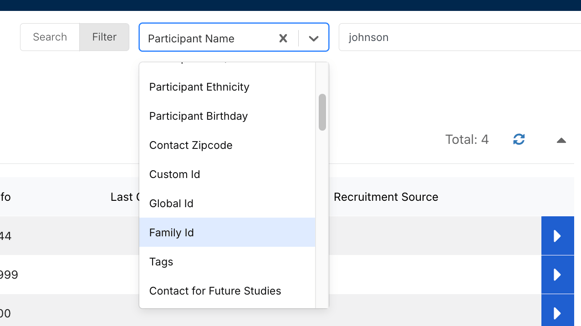
Use the **Filter Dashboard** options to narrow the displayed results based on the available filter categories. After selecting a filter, enter the specific value you want to filter for in the field to the right.
For example, if participants who are related share the same Family ID, select **Family ID** and enter the appropriate value to display all participants with that Family ID. To search by last name, select **Participant Name** and enter the participant’s last name, such as *Johnson*. The dashboard will then display all matching participants in the study.
**NOTE:** The dashboard will not apply a filter until a search or filter value is entered in the corresponding field.
#### **Reorganizing the Data on the Dashboard**
You can also sort the dashboard results by selecting the arrow next to a column heading. Choose ascending or descending order to organize the information based on that column.
- [My Account](https://support.enrollnow.io/en/knowledge-base/my-account?hsLang=en#main-content)
- [Customer Corner](https://support.enrollnow.io/en/knowledge-base/my-account?hsLang=en#customer-corner)
- [Support](https://support.enrollnow.io/en/knowledge-base/my-account?hsLang=en#support)
- [Users & Permissions](https://support.enrollnow.io/en/knowledge-base/users-permissions?hsLang=en)
- [Registry](https://support.enrollnow.io/en/knowledge-base/registry?hsLang=en)
- [Studies](https://support.enrollnow.io/en/knowledge-base/studies?hsLang=en)
- [Dashboard](https://support.enrollnow.io/en/knowledge-base/dashboard?hsLang=en)
- [Participants](https://support.enrollnow.io/en/knowledge-base/participants?hsLang=en#main-content)
- [Potential/Enrolled](https://support.enrollnow.io/en/knowledge-base/participants?hsLang=en#potential-enrolled)
- [Sex/Gender](https://support.enrollnow.io/en/knowledge-base/participants?hsLang=en#sex-gender)
- [Tasks](https://support.enrollnow.io/en/knowledge-base/tasks?hsLang=en#main-content)
- [Tasks](https://support.enrollnow.io/en/knowledge-base/tasks?hsLang=en#tasks)
- [Recruitment](https://support.enrollnow.io/en/knowledge-base/recruitment?hsLang=en#main-content)
- [Sources](https://support.enrollnow.io/en/knowledge-base/recruitment?hsLang=en#sources)
- [Strategies](https://support.enrollnow.io/en/knowledge-base/recruitment?hsLang=en#strategies)
- [Calendar](https://support.enrollnow.io/en/knowledge-base/calendar?hsLang=en)
- [Survey Creator](https://support.enrollnow.io/en/knowledge-base/survey-creator?hsLang=en#main-content)
- [Tips and Tricks](https://support.enrollnow.io/en/knowledge-base/survey-creator?hsLang=en#tips-and-tricks)
- [Thank you page](https://support.enrollnow.io/en/knowledge-base/survey-creator?hsLang=en#thank-you-page)
- [Question Types](https://support.enrollnow.io/en/knowledge-base/survey-creator?hsLang=en#question-types)
- [Report Builder & Reports](https://support.enrollnow.io/en/knowledge-base/report-builder-reports?hsLang=en#main-content)
- [Reports](https://support.enrollnow.io/en/knowledge-base/report-builder-reports?hsLang=en#reports)
- [Report Builder Basics](https://support.enrollnow.io/en/knowledge-base/report-builder-reports?hsLang=en#report-builder-basics)
- [Study Settings](https://support.enrollnow.io/en/knowledge-base/study-settings?hsLang=en#main-content)
- [Requirements](https://support.enrollnow.io/en/knowledge-base/study-settings?hsLang=en#requirements)
- [Email and Texts](https://support.enrollnow.io/en/knowledge-base/study-settings?hsLang=en#email-and-texts)
- [Display](https://support.enrollnow.io/en/knowledge-base/study-settings?hsLang=en#display)
- [Details](https://support.enrollnow.io/en/knowledge-base/study-settings?hsLang=en#details)
- [Statuses](https://support.enrollnow.io/en/knowledge-base/study-settings?hsLang=en#statuses)
- [Bulk Tasks](https://support.enrollnow.io/en/knowledge-base/study-settings?hsLang=en#bulk-tasks)
- [Events](https://support.enrollnow.io/en/knowledge-base/study-settings?hsLang=en#events)
- [Import/Export](https://support.enrollnow.io/en/knowledge-base/import-export?hsLang=en#main-content)
- [Tips and Tricks](https://support.enrollnow.io/en/knowledge-base/import-export?hsLang=en#tips-and-tricks)
- [study definitions](https://support.enrollnow.io/en/knowledge-base/import-export?hsLang=en#study-definitions)
- [Export](https://support.enrollnow.io/en/knowledge-base/import-export?hsLang=en#export)
- [API](https://support.enrollnow.io/en/knowledge-base/api?hsLang=en)
- [FAQs & Troubleshooting](https://support.enrollnow.io/en/knowledge-base/faqs-troubleshooting?hsLang=en#main-content)
- [Ripple Performance](https://support.enrollnow.io/en/knowledge-base/faqs-troubleshooting?hsLang=en#ripple-performance)
- [Security Settings](https://support.enrollnow.io/en/knowledge-base/faqs-troubleshooting?hsLang=en#security-settings)
- [Reuse Custom ID](https://support.enrollnow.io/en/knowledge-base/faqs-troubleshooting?hsLang=en#reuse-custom-id)
- [Internal Server Error - Importing](https://support.enrollnow.io/en/knowledge-base/faqs-troubleshooting?hsLang=en#internal-server-error-importing)
- [Account Lock out](https://support.enrollnow.io/en/knowledge-base/faqs-troubleshooting?hsLang=en#account-lock-out)
- [FAQ](https://support.enrollnow.io/en/knowledge-base/faqs-troubleshooting?hsLang=en#faq)
- [Calendar Integration Issues](https://support.enrollnow.io/en/knowledge-base/faqs-troubleshooting?hsLang=en#calendar-integration-issues)
- [e-consent downloads](https://support.enrollnow.io/en/knowledge-base/faqs-troubleshooting?hsLang=en#e-consent-downloads)
- [Support Web Pages](https://support.enrollnow.io/en/knowledge-base/faqs-troubleshooting?hsLang=en#support-web-pages)
- [EnrollNow Glossary](https://support.enrollnow.io/en/knowledge-base/faqs-troubleshooting?hsLang=en#enrollnow-glossary)
- [EnrollNow Performance](https://support.enrollnow.io/en/knowledge-base/faqs-troubleshooting?hsLang=en#enrollnow-performance)
- [Security](https://support.enrollnow.io/en/knowledge-base/security?hsLang=en#main-content)
- [Security](https://support.enrollnow.io/en/knowledge-base/security?hsLang=en#security)
- [Ripple Service Status Report](https://support.enrollnow.io/en/knowledge-base/security?hsLang=en#ripple-service-status-report)
- [Workflows and How To's](https://support.enrollnow.io/en/knowledge-base/workflows-and-how-tos?hsLang=en)
- [Site Admin](https://support.enrollnow.io/en/knowledge-base/site-admin?hsLang=en#main-content)
- [Users](https://support.enrollnow.io/en/knowledge-base/site-admin?hsLang=en#users)
- [Export](https://support.enrollnow.io/en/knowledge-base/site-admin?hsLang=en#export)
- [Security](https://support.enrollnow.io/en/knowledge-base/site-admin?hsLang=en#security)
- [Audit Logs](https://support.enrollnow.io/en/knowledge-base/audit-logs?hsLang=en)
- [Product Release Notes](https://support.enrollnow.io/en/knowledge-base/product-release-notes?hsLang=en#main-content)
- [2026](https://support.enrollnow.io/en/knowledge-base/product-release-notes?hsLang=en#2026)
- [2025](https://support.enrollnow.io/en/knowledge-base/product-release-notes?hsLang=en#2025)
- [2024](https://support.enrollnow.io/en/knowledge-base/product-release-notes?hsLang=en#2024)
- [2023](https://support.enrollnow.io/en/knowledge-base/product-release-notes?hsLang=en#2023)
- [2022](https://support.enrollnow.io/en/knowledge-base/product-release-notes?hsLang=en#2022)
- [2019-2021](https://support.enrollnow.io/en/knowledge-base/product-release-notes?hsLang=en#2019-2021)
[](http://enrollnow.io)
[Privacy Policy](https://enrollnow.io/legal/privacy-policy)[Terms of Service](https://enrollnow.io/legal/terms-of-service)
Copyright © 2025, EnrollNow
```json
{
"@context" : "https://schema.org",
"@type" : "VideoObject",
"contentUrl" : "https://21554971.fs1.hubspotusercontent-na1.net/hubfs/21554971/video_assets/216372814085/inherited/web_optimized.mp4",
"dateModified" : "2026-07-02T16:57:03.284Z",
"duration" : "PT21S",
"height" : 1588,
"name" : "Searching Dashboard PotentialEnrolled",
"thumbnailUrl" : "https://support.enrollnow.io/hubfs/Searching%20Dashboard%20PotentialEnrolled.mov/medium.jpg",
"uploadDate" : "2026-07-02T16:56:53.312Z",
"width" : 2930
}
```
```json
{
"@context" : "https://schema.org",
"@type" : "VideoObject",
"contentUrl" : "https://21554971.fs1.hubspotusercontent-na1.net/hubfs/21554971/video_assets/216372901944/inherited/web_optimized.mp4",
"dateModified" : "2026-07-02T17:32:13.542Z",
"duration" : "PT18S",
"height" : 1588,
"name" : "Dashboard EnrolledPotential Order of Columns",
"thumbnailUrl" : "https://support.enrollnow.io/hubfs/Dashboard%20EnrolledPotential%20Order%20of%20Columns.mov/medium.jpg",
"uploadDate" : "2026-07-02T17:31:58.660Z",
"width" : 2930
}
```