---
title: Creating Custom Variables
description: In Ripple, each study participant has a participant profile card that stores demographic and study-related data. Ripple includes built-in fields for basic information like Birthdate, Gender, or Ethnic
---
[Skip to content](https://support.enrollnow.io/en/knowledge-base/types-of-custom-variables#main-content)
[EnrollNow Support Center](https://support.enrollnow.io/helpdesk?hsLang=en)

- [Support Center](https://support.enrollnow.io/helpdesk)
- [User Community](https://academy.enrollnow.io/)
- [Learning Academy](https://academy.enrollnow.io/)
- [Knowledge Base](https://support.enrollnow.io/en/knowledge-base)
Open main navigation
Close main navigation
- [Support Center](https://support.enrollnow.io/helpdesk)
- [User Community](https://academy.enrollnow.io/)
- [Learning Academy](https://academy.enrollnow.io/)
- [Knowledge Base](https://support.enrollnow.io/en/knowledge-base)
- [EnrollNow Support Center](https://support.enrollnow.io/helpdesk)
How can we help you?
- There are no suggestions because the search field is empty.
1. [EnrollNow Knowledge Base](https://support.enrollnow.io/en/knowledge-base?hsLang=en)
2. [Study Settings](https://support.enrollnow.io/en/knowledge-base/study-settings?hsLang=en)
3. [Requirements](https://support.enrollnow.io/en/knowledge-base/study-settings?hsLang=en#requirements)
June 18, 2026
# Creating Custom Variables
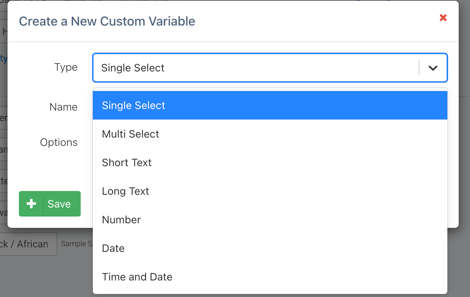
In EnrollNow, each study participant has a participant profile card that stores demographic and study-related data. EnrollNow includes built-in fields for basic information like Birthdate, Gender, or Ethnicity, and allows users to create **Custom Variables** for study-specific data outside of the pre-set options.
**Types of Custom Variable Fields:**
1. **Single Select**: A dropdown menu where one option can be selected.
2. **Multi Select**: A dropdown menu where multiple options can be selected.
3. **Short Text**: An open text field with a non-expanding view window.
4. **Long Text**: An open text field with an expanding view window.
5. **Number**: An open field for number-only submissions.
6. **Date**: A date picker in the format MM/DD/YYYY (or your locale).
7. **Date Time**: A date and time picker in the format MM/DD/YYYY XX:XX (or your locale).
### Custom Variable Settings
#### **Global or Study-Specific Custom Variables**
Custom Variables in EnrollNow can be configured as either **study-specific** or **global** variables. To make a variable global and accessible across multiple studies, select the **Global** checkbox during setup.
#### **Blinded Custom Variables**
Custom Variables can also be marked as **blinded** when they contain Protected Health Information (PHI) or other sensitive participant data. Blinded variables are only visible to users with the appropriate permissions, such as Site Admins or Study Admins.
### **Organizing Custom Variables with Groups**
Custom Variables can be organized into groups on the **Requirements** page to make large lists of variables easier to manage and navigate. Grouping related variables together helps improve organization, usability, and data entry workflows.
##### **Creating a Custom Variable Group**
To create a new group:
1. Navigate to the **Requirements** page.
2. In the **Custom Variables** section, click the **New Group** button located on the right side of the page.
3. Enter a name for the group and save it.
Once created, the new group will appear at the bottom of the Custom Variables list.
#### **Adding Variables to a Group**
To add variables to a group:
1. Click the blue **+** icon within the group.
2. Choose one of the following options:
- Add an existing Custom Variable to the group
- Create a new Custom Variable directly within the group by clicking **"new variable in this group"**
This allows teams to keep related Custom Variables organized together in a centralized location.
### Reordering & Searching Custom Variables
Custom Variables and groups can be rearranged using drag-and-drop functionality. This allows teams to organize variables in the order that best supports their workflow, data entry process, and overall study management needs.
For easier navigation, the search bar can be used to quickly locate specific Custom Variables. This feature is especially helpful when managing long lists of variables or large groupings.
**IMPORTANT TIP:** When entering a number in a number-type custom variable, ensure you click outside the box to save the value before scrolling. Failing to do so may alter the saved value.
**Custom Variable Name Limit Reminder**
Custom variable names in EnrollNow are limited to **40 characters**, including spaces. To avoid issues with survey and report functionality, please ensure all custom variable names stay within this limit.
If you're experiencing an issue where a report will not populate, one possible cause may be a variable name that exceeds 40 characters. We recommend reviewing the names of your custom variables and shortening any that exceed the limit
- [My Account](https://support.enrollnow.io/en/knowledge-base/my-account?hsLang=en#main-content)
- [Customer Corner](https://support.enrollnow.io/en/knowledge-base/my-account?hsLang=en#customer-corner)
- [Support](https://support.enrollnow.io/en/knowledge-base/my-account?hsLang=en#support)
- [Users & Permissions](https://support.enrollnow.io/en/knowledge-base/users-permissions?hsLang=en)
- [Registry](https://support.enrollnow.io/en/knowledge-base/registry?hsLang=en)
- [Studies](https://support.enrollnow.io/en/knowledge-base/studies?hsLang=en)
- [Dashboard](https://support.enrollnow.io/en/knowledge-base/dashboard?hsLang=en)
- [Participants](https://support.enrollnow.io/en/knowledge-base/participants?hsLang=en#main-content)
- [Potential/Enrolled](https://support.enrollnow.io/en/knowledge-base/participants?hsLang=en#potential-enrolled)
- [Sex/Gender](https://support.enrollnow.io/en/knowledge-base/participants?hsLang=en#sex-gender)
- [Tasks](https://support.enrollnow.io/en/knowledge-base/tasks?hsLang=en#main-content)
- [Tasks](https://support.enrollnow.io/en/knowledge-base/tasks?hsLang=en#tasks)
- [Recruitment](https://support.enrollnow.io/en/knowledge-base/recruitment?hsLang=en#main-content)
- [Sources](https://support.enrollnow.io/en/knowledge-base/recruitment?hsLang=en#sources)
- [Strategies](https://support.enrollnow.io/en/knowledge-base/recruitment?hsLang=en#strategies)
- [Calendar](https://support.enrollnow.io/en/knowledge-base/calendar?hsLang=en)
- [Survey Creator](https://support.enrollnow.io/en/knowledge-base/survey-creator?hsLang=en#main-content)
- [Tips and Tricks](https://support.enrollnow.io/en/knowledge-base/survey-creator?hsLang=en#tips-and-tricks)
- [Thank you page](https://support.enrollnow.io/en/knowledge-base/survey-creator?hsLang=en#thank-you-page)
- [Question Types](https://support.enrollnow.io/en/knowledge-base/survey-creator?hsLang=en#question-types)
- [Report Builder & Reports](https://support.enrollnow.io/en/knowledge-base/report-builder-reports?hsLang=en#main-content)
- [Reports](https://support.enrollnow.io/en/knowledge-base/report-builder-reports?hsLang=en#reports)
- [Report Builder Basics](https://support.enrollnow.io/en/knowledge-base/report-builder-reports?hsLang=en#report-builder-basics)
- [Study Settings](https://support.enrollnow.io/en/knowledge-base/study-settings?hsLang=en#main-content)
- [Requirements](https://support.enrollnow.io/en/knowledge-base/study-settings?hsLang=en#requirements)
- [Email and Texts](https://support.enrollnow.io/en/knowledge-base/study-settings?hsLang=en#email-and-texts)
- [Display](https://support.enrollnow.io/en/knowledge-base/study-settings?hsLang=en#display)
- [Details](https://support.enrollnow.io/en/knowledge-base/study-settings?hsLang=en#details)
- [Statuses](https://support.enrollnow.io/en/knowledge-base/study-settings?hsLang=en#statuses)
- [Bulk Tasks](https://support.enrollnow.io/en/knowledge-base/study-settings?hsLang=en#bulk-tasks)
- [Events](https://support.enrollnow.io/en/knowledge-base/study-settings?hsLang=en#events)
- [Import/Export](https://support.enrollnow.io/en/knowledge-base/import-export?hsLang=en#main-content)
- [Tips and Tricks](https://support.enrollnow.io/en/knowledge-base/import-export?hsLang=en#tips-and-tricks)
- [study definitions](https://support.enrollnow.io/en/knowledge-base/import-export?hsLang=en#study-definitions)
- [Export](https://support.enrollnow.io/en/knowledge-base/import-export?hsLang=en#export)
- [API](https://support.enrollnow.io/en/knowledge-base/api?hsLang=en)
- [FAQs & Troubleshooting](https://support.enrollnow.io/en/knowledge-base/faqs-troubleshooting?hsLang=en#main-content)
- [Ripple Performance](https://support.enrollnow.io/en/knowledge-base/faqs-troubleshooting?hsLang=en#ripple-performance)
- [Security Settings](https://support.enrollnow.io/en/knowledge-base/faqs-troubleshooting?hsLang=en#security-settings)
- [Reuse Custom ID](https://support.enrollnow.io/en/knowledge-base/faqs-troubleshooting?hsLang=en#reuse-custom-id)
- [Internal Server Error - Importing](https://support.enrollnow.io/en/knowledge-base/faqs-troubleshooting?hsLang=en#internal-server-error-importing)
- [Account Lock out](https://support.enrollnow.io/en/knowledge-base/faqs-troubleshooting?hsLang=en#account-lock-out)
- [FAQ](https://support.enrollnow.io/en/knowledge-base/faqs-troubleshooting?hsLang=en#faq)
- [Calendar Integration Issues](https://support.enrollnow.io/en/knowledge-base/faqs-troubleshooting?hsLang=en#calendar-integration-issues)
- [e-consent downloads](https://support.enrollnow.io/en/knowledge-base/faqs-troubleshooting?hsLang=en#e-consent-downloads)
- [Support Web Pages](https://support.enrollnow.io/en/knowledge-base/faqs-troubleshooting?hsLang=en#support-web-pages)
- [EnrollNow Glossary](https://support.enrollnow.io/en/knowledge-base/faqs-troubleshooting?hsLang=en#enrollnow-glossary)
- [EnrollNow Performance](https://support.enrollnow.io/en/knowledge-base/faqs-troubleshooting?hsLang=en#enrollnow-performance)
- [Security](https://support.enrollnow.io/en/knowledge-base/security?hsLang=en#main-content)
- [Security](https://support.enrollnow.io/en/knowledge-base/security?hsLang=en#security)
- [Ripple Service Status Report](https://support.enrollnow.io/en/knowledge-base/security?hsLang=en#ripple-service-status-report)
- [Workflows and How To's](https://support.enrollnow.io/en/knowledge-base/workflows-and-how-tos?hsLang=en)
- [Site Admin](https://support.enrollnow.io/en/knowledge-base/site-admin?hsLang=en#main-content)
- [Users](https://support.enrollnow.io/en/knowledge-base/site-admin?hsLang=en#users)
- [Export](https://support.enrollnow.io/en/knowledge-base/site-admin?hsLang=en#export)
- [Security](https://support.enrollnow.io/en/knowledge-base/site-admin?hsLang=en#security)
- [Audit Logs](https://support.enrollnow.io/en/knowledge-base/audit-logs?hsLang=en)
- [Product Release Notes](https://support.enrollnow.io/en/knowledge-base/product-release-notes?hsLang=en#main-content)
- [2026](https://support.enrollnow.io/en/knowledge-base/product-release-notes?hsLang=en#2026)
- [2025](https://support.enrollnow.io/en/knowledge-base/product-release-notes?hsLang=en#2025)
- [2024](https://support.enrollnow.io/en/knowledge-base/product-release-notes?hsLang=en#2024)
- [2023](https://support.enrollnow.io/en/knowledge-base/product-release-notes?hsLang=en#2023)
- [2022](https://support.enrollnow.io/en/knowledge-base/product-release-notes?hsLang=en#2022)
- [2019-2021](https://support.enrollnow.io/en/knowledge-base/product-release-notes?hsLang=en#2019-2021)
[](http://enrollnow.io)
[Privacy Policy](https://enrollnow.io/legal/privacy-policy)[Terms of Service](https://enrollnow.io/legal/terms-of-service)
Copyright © 2025, EnrollNow
```json
{
"@context" : "https://schema.org",
"@type" : "VideoObject",
"contentUrl" : "https://21554971.fs1.hubspotusercontent-na1.net/hubfs/21554971/video_assets/212906514343/inherited/web_optimized.mp4",
"dateModified" : "2026-05-14T21:26:51.244Z",
"duration" : "PT1M29.025S",
"height" : 1638,
"name" : "CV Grouping",
"thumbnailUrl" : "https://support.enrollnow.io/hubfs/CV%20Grouping.mov/medium.jpg",
"uploadDate" : "2026-05-14T21:26:23.870Z",
"width" : 3450
}
```
```json
{
"@context" : "https://schema.org",
"@type" : "VideoObject",
"contentUrl" : "https://21554971.fs1.hubspotusercontent-na1.net/hubfs/21554971/video_assets/212910951726/inherited/web_optimized.mp4",
"dateModified" : "2026-05-14T21:50:21.846Z",
"duration" : "PT24S",
"height" : 1638,
"name" : "Reordering CV",
"thumbnailUrl" : "https://support.enrollnow.io/hubfs/Reordering%20CV.mov/medium.jpg",
"uploadDate" : "2026-05-14T21:50:12.963Z",
"width" : 3450
}
```