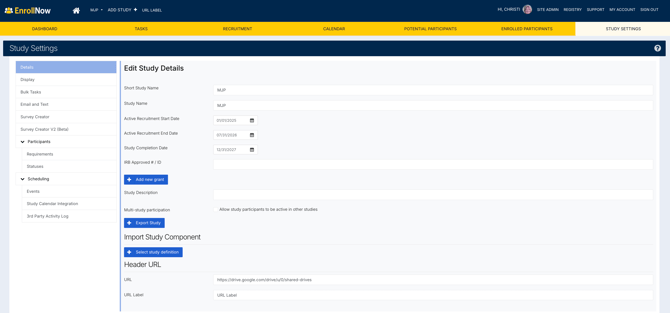
URL Labels in EnrollNow provide a convenient way to link users directly to important external study resources. URL Labels can be used to connect study staff with commonly accessed websites and systems without leaving the study workflow.
Common uses for URL Labels include linking to:
- Standard Operating Procedure (SOP) documents
- Electronic Data Capture (EDC) systems
- Clinical Trial Management Systems (CTMS)
- External surveys
- Study landing pages
- Shared study resources or websites
Once configured, the URL Label appears in the study header to the right of the Add Study+ and opens the external website in a new browser window when selected. 
Instructions to Create a URL Label in the EnrollNow Header
Permissions
Only users with Site Admin access to the study can create or update a URL Label.
Important Notes:
- URL Labels are configured at the study level
- Changes apply to all users within the study
- Only one URL Label can be configured per study
How to Add a URL Label
Step 1: Navigate to Study Settings
Open the study and select the Study Settings tab.
Step 2: Open the Details Section
Scroll to the Details section of the study settings page.
Step 3: Enter URL Information
Complete the following fields:
- URL — Enter the website address users should be directed to
- URL Label — Enter the display name that will appear in the study header
Step 4: Save the Configuration
Save the study settings. Once saved, the URL Label will appear in the study header.
Accessing the URL Label
Users can select the URL Label from the study header to open the external website in a new browser window. The URL Label is displayed when users are actively working within a specific study. The URL Label is visible to all users assigned to the study.
When switching between studies, the header updates to display the URL Label associated with the currently selected study.