
You can attach files directly to a participant’s profile in EnrollNow. Files can be added through the participant’s Comments Log or within the comments section of a specific Event on the participant’s profile card.
Attaching files can be helpful when your team needs to store supporting documentation, notes, forms, or other participant-related materials in one centralized location.
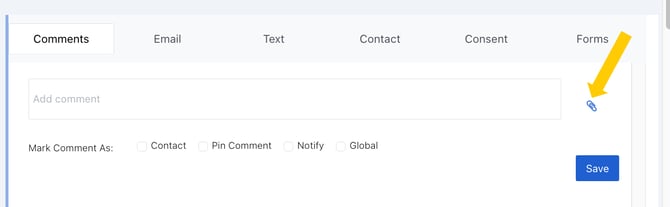
Option 1: Attach a File Through the Comments Log
Use the Comments Log when the file is related to the participant’s overall profile rather than a specific event.
- Navigate to the participant’s profile card.
- Locate the Comments Log section.
- Select the paperclip icon to the right of the comment box.
- Choose the file you want to upload from your computer.
- Click Open to attach the file to the participant profile.
- Optional: Add a comment to provide context for the attachment.
- Click Save to save the comment and upload the file.
The file will be added to the participant’s Comments Log and will be visible with the associated comment.
Option 2: Attach a File Within an Events
Use the Events comments section when the file is related to a specific participant event, such as an appointment, screening, visit, or follow-up activity.
- Open the participant’s profile card.
- Locate and open the specific Event where you want to attach the file.
- In the Event comments section, click the paperclip icon.
- Select the file you want to upload from your device.
- Click Open to upload the file.
- Optional: Add a comment to provide additional context.
- Click Save to upload the file to the Event.
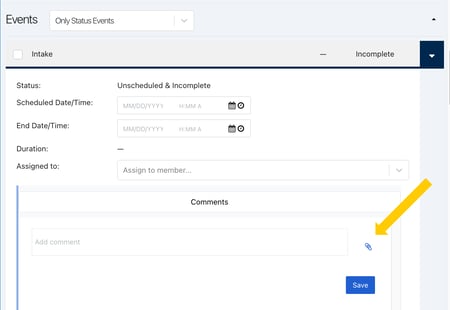
The file will be attached to the Event and will remain associated with that specific participant activity.
Best Practice
When uploading a file, consider adding a brief comment that explains what the file is and why it was added. This can help other team members understand the purpose of the attachment when reviewing the participant profile or Event history.