
Using Expressions to Calculate Values in Ripple
Use expressions in EnrollNow Survey Creator to calculate values from survey responses or prefill fields automatically. Add an Expression (Read-Only) question for a calculated result, or use a Default Value Expression on a Single Input question to prefill an answer.
Tip: When using expressions and calculated fields, you may want to hide these values from respondents while still capturing the data for analysis. EnrollNow allows you to do this by unchecking the “Is Visible?” checkbox.
How to Create a BMI Calculator in Ripple (Pounds & Inches)
Calculate BMI from pounds, feet, and inches
- Add a Panel titled BMI Calculator.
- Inside the panel, add three Single Input questions. In each question’s Properties panel on the right, under General section enter the corresponding Name and set Input Type to Number.
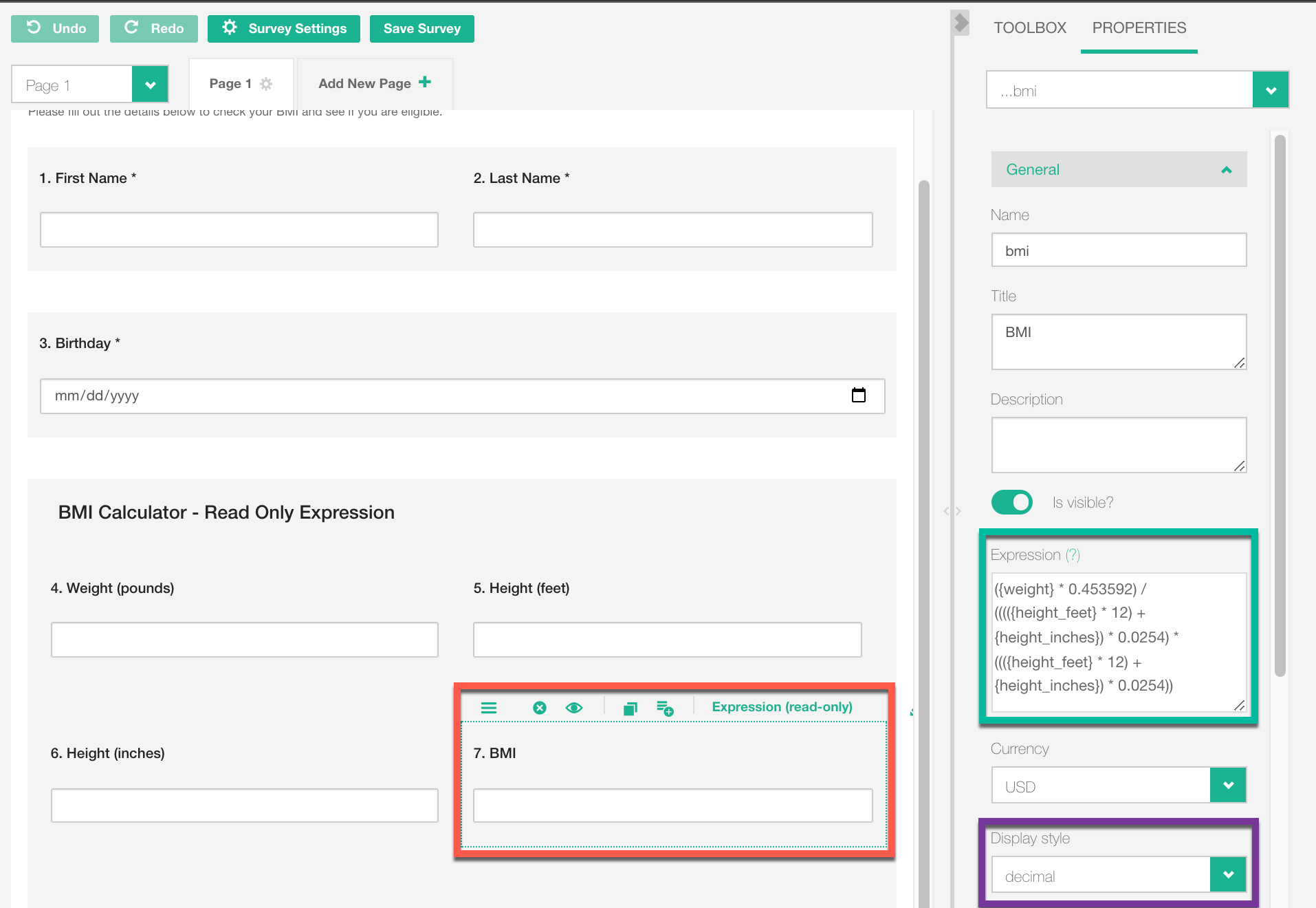
Question title Name Weight (pounds) weightHeight (feet) height_feetHeight (additional inches) height_inches - Add an Expression (Read-Only) question (located toward the bottom of the Question types menu on the left and name it BMI. In Properties under General, enter this formula in the Expression field.
({weight} * 0.453592) / ((({height_feet} * 12 + {height_inches}) * 0.0254) * (({height_feet} * 12 + {height_inches}) * 0.0254)) - Set Display Style to Decimal, then select Save Survey.
The formula converts pounds to kilograms and total inches to meters, then divides weight in kilograms by height in meters squared. Enter 0 for additional inches when the respondent’s height is a whole number of feet. For example, 150 pounds and 5 feet 0 inches should give a BMI of about 29.3.
How This Works
Weight is converted from pounds to kilograms using 0.453592.
Height is converted from feet and inches to meters using 0.0254.
The BMI formula is applied to compute the Body Mass Index.
How to Automatically Calculate a Respondent’s Age in Ripple
Calculating a respondent’s current age based on their date of birth (DOB) ensures accurate data collection and enables logic-based automation in surveys. This calculated age can also be linked to the participant profile card for easy reference.
Setting Up an Age Calculator
Calculate a respondent’s current age
-
- Add a Single Input question for the respondent’s date of birth.
- In Properties under General, set Name to
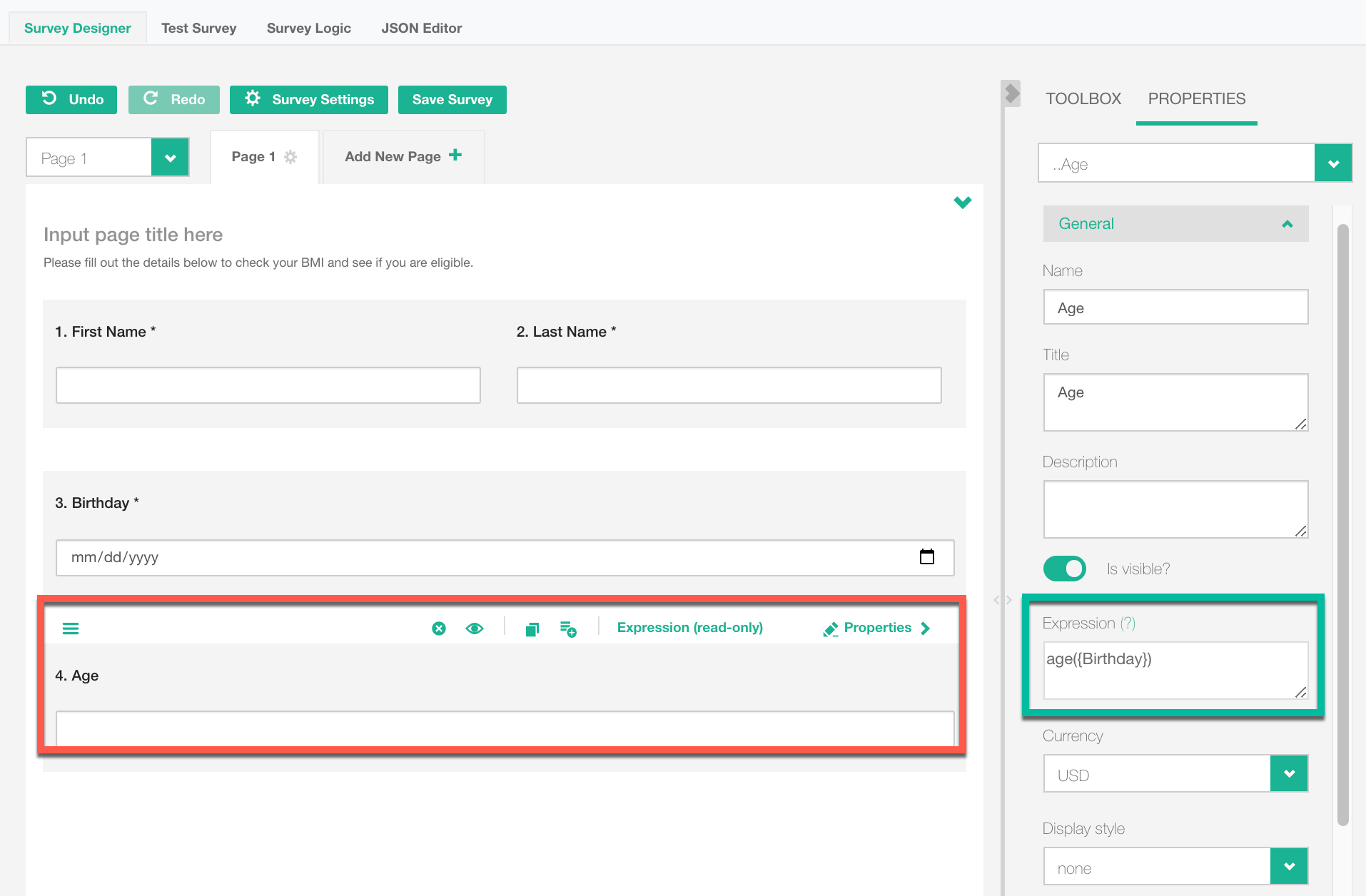
Birthdayand Input Type to Date. - Add an Expression (Read-Only) question titled Age. Enter the following in the Expression field.
2. Create the Age Calculation Field
-
- Add an "Expression (Read-Only)" question.
- Open the Properties Panel on the right.
- In the "Expression" field, enter the following formula:
age({Birthday})-
- This function automatically calculates the respondent’s age based on their DOB.
3. Save the Survey
How This Works
-
The Birthday field captures the participant’s date of birth.
-
The Expression (Read-Only) field automatically calculates current age based on today’s date.
-
The calculated age can be used for survey logic and stored on the participant profile card.
How to Automatically Capture Today’s Date in a Survey
Automatically recording today’s date in a survey can be useful for:
-
Tracking consent signing dates
-
Recording survey completion dates
-
Automating follow-up emails or next steps
Capturing Today’s Date
1. Add a Date Field to Your Survey
-
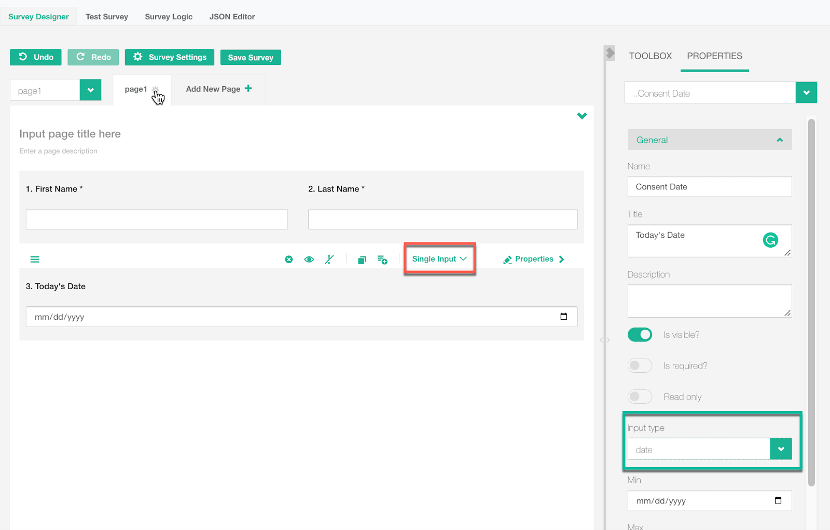
- Open the Toolbox on the left and add a "Single Input" question to your survey.
2. Configure the Date Field
-
- Open the Properties Panel on the right.
- Under the General dropdown, change the Input Type (green) to “Date”
3. Set the Default Value to Today’s Date
-
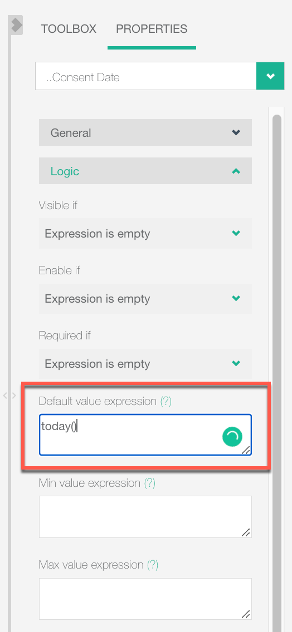
- Scroll to the Logic section in the Properties Panel.
- In the Default Value Expression field(red), enter:
today()-
- This will automatically populate today’s date when the survey is opened.
4. Save the Survey
-
- Click "Save Survey" to apply the changes.
How This Works
-
When a participant opens the survey, the date field automatically fills with today’s date.
-
If the form is saved, the date remains fixed (it does not update when viewed later).
-
Useful for time stamping consent forms and survey completions.
Important Warning About Using Expression (Read-Only) for Age Calculation
When using an Expression (Read-Only) type question to calculate age based on today’s date, the result is dynamic and will change over time.
How This Affects Age Calculations
-
If a participant submits a survey on 8/15/2022, the today() function will calculate their age as of 8/15/2022.
-
If you view the same survey later on 9/8/2022, the today() function will update to 9/8/2022, causing the age value to change.