
The Consent Log is located within a participant’s profile and is used to track consent records related to a study. This may include consent obtained from the participant, a parent or guardian, or another individual providing consent on behalf of or in relation to the participant.
The Consent Log helps teams maintain a record of when consent was collected, what type of consent was obtained, which version was used, and any related documentation or notes.
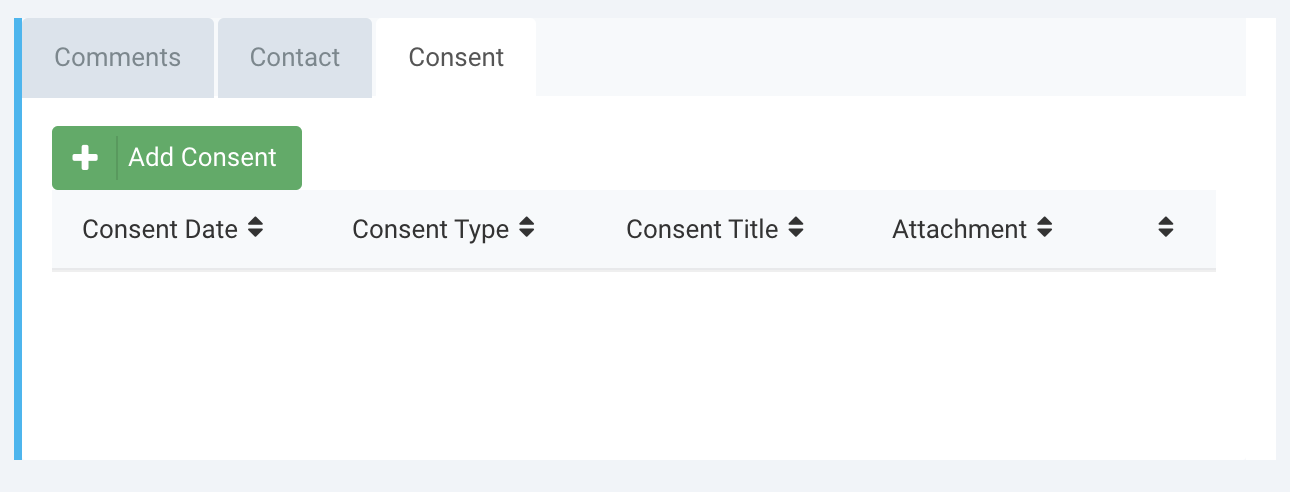
Viewing Consent Records
To view a participant’s consent history, open the participant profile and select the Consent Log tab. This section displays all previous consent records entered for the participant.
To add a new consent record, click the Add Consent button.
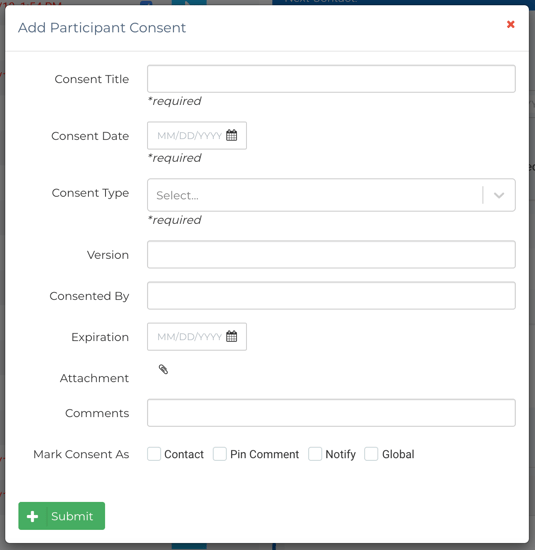
Adding a New Consent Record
When adding a new consent record, users can enter the following information:
- Consent Title — Required field
- Consent Date — Required field
- Consent Type — Required field
- Version
- Consented By — The EnrollNow user who countersigned consent.
- Expiration
- Attachments
- Additional Comments
These fields allow your team to document key consent details and attach any supporting files when needed.
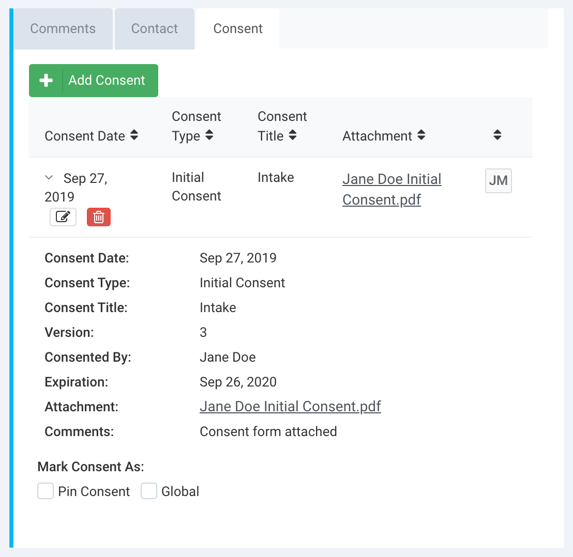
After a new consent record is added, it will appear in the Consent Log with the consent date, consent type, consent title, and any attachments. The initials of the user who created the record will appear at the end of the row.
NOTE:
-
Unless a consent record has been pinned, the Consent Log is organized from newest to oldest.
-
Consent Log entries are only editable by the user who created them. To edit a consent record, click the pencil icon to open the consent modal and make any necessary updates.
Additional Consent Options
When creating a consent record, users may also select the following options:
Contact
Selecting Contact will update the participant’s Date of Last Contact and Global Date of Last Contact.
Pin Contact
Selecting Pin Contact keeps the consent record at the top of the Consent Log, regardless of the consent date. Multiple consent records can be pinned if needed.
Notify
Selecting Notify sends an email notification about the consent record to your team.
Global
Selecting Global makes the consent record visible across all studies and in the Registry. A Global tag will indicate the study where the consent record was originally created.