
The Data Dictionary is a reference tool that lists names, definitions, and attributes of data that can be imported into EnrollNow. It specifies the values allowed in a global or study-specific Template, ensuring correct data formatting. Since EnrollNow' s import tool is case-sensitive, it's important to follow the exact format, including capitalization, for variables, dates, times, and custom options to avoid errors.
Steps for Using the Data Dictionary
-
Review the Data Dictionary:
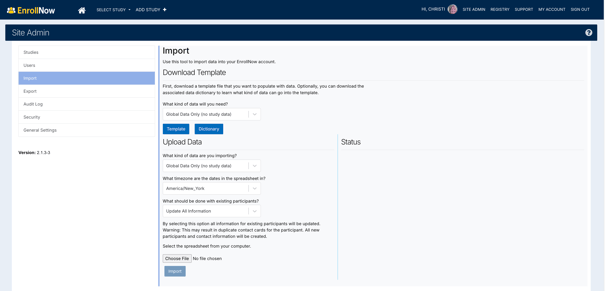
- Navigate to Site Admin-->Import. Locate the Dictionary button in for your specific study or the global template.
- Identify the required variables, definitions, and expected formats.
-
Check Formatting Requirements:
- Pay attention to letter case (uppercase/lowercase matters).
- Ensure dates, times, and custom variable options match exactly as specified.
-
Prepare Your Import Template File:
- Use the correct variable names and values as listed in the Data Dictionary.
- Double-check that the format is consistent for all entries.
-
Verify Before Importing:
- Scan for typos or incorrect capitalization.
- Confirm that all data entries follow the expected structure.
-
Import the Data into EnrollNow:
- Upload the prepared template using EnrollNow’s import tool.
- If an error occurs, refer back to the Data Dictionary to correct formatting issues.
Reading Your Data Dictionary
The Data Dictionary consists of four columns that provide details on the variables you can import into EnrollNow It specifies the type of data allowed, the correct formatting, and any special instructions. This ensures that you enter data accurately and avoid import errors.
Understanding the Four Columns in the Data Dictionary:
-
Field:
- This column lists the variable name or data field where you will input data.
- Global Data Dictionary fields include standard fields like name, global and family IDs, demographics, tags, contact info, global contact, email, consent, comment logs and global custom variables.
- Study-Specific Data Dictionary fields include all fields from your Global Data Dictionary and extra fields for events, statuses, custom IDs, recruitment sources, sites, strategies and other study-specific custom variables.
-
Type:
- Defines the type of value for each field. Based on EnrollNow's pre-set variable options and how you set up your custom variable options.
- Possible types:
- Short text / Long text (e.g., names, comments)
- Single select / Multi select (preset choices)
- Number (numerical values)
- Boolean (true/false)
- Option (predefined choices)
- Date / DateTime (formatted date values)
-
Allowed:
- Specifies the required format for the data.
- Lists acceptable options for single/multi-select fields.
- Defines the correct date format to prevent errors.
-
Description:
- Provides additional notes on data requirements.
- Indicates if a variable is global or study-specific.
- Gives formatting tips and specific entry rules.

TIP: To prevent formatting errors while importing data into EnrollNow, copy the values from the "Allowed" column in the Data Dictionary and paste them directly into your Template. This ensures accuracy, especially for case-sensitive fields, single/multi-select options, and date formats.
Additional Formatting Rules for Data Dictionary
The EnrollNow Data Dictionary defines the formatting requirements for each import field. Following these requirements exactly helps prevent validation errors and ensures that data is imported correctly.
Formatting requirements may include lowercase text, specific date formats, underscores in variable names, uppercase Boolean values, and pipe-separated values for multi-select fields.
Text Formatting
When preparing your import template:
-
- Enter text values in lowercase unless the Data Dictionary specifies otherwise.
- Enter Boolean values in uppercase as TRUE or FALSE.
- Replace spaces in variable names with underscores (
_).
For example:
-
Contacted Participantbecomescontacted_participantTRUEis a valid Boolean value.True,true, andYesshould not be used for a Boolean field.
Always refer to the Data Dictionary for the exact accepted values for each field.
Date Formatting
Enter dates using the following format:
MM/DD/YYYY
For example:
07/20/2026
To format a date column in Microsoft Excel:
-
- Select the column containing the dates.
- Right-click the selected column and choose Format Cells.
- Select the Date category.
- Choose a date format that displays the month, day, and four-digit year.
- Confirm that the resulting dates appear as
MM/DD/YYYY.
Important: Do not select a date format marked with an asterisk (*). Asterisked formats may change based on the computer’s regional settings and may not retain the required import format.
When using Google Sheets or Excel, apply a custom date format of MM/DD/YYYY and verify the displayed values within the spreadsheet before exporting the file.
Multi-Select Variables
For a multi-select field, enter all selected values in the same cell and separate each value with a pipe character (|).
Do not add spaces before or after the pipe character.
Correct:
option1|option2|option3
Incorrect:
option1 | option2 | option3
Each value must match an accepted option listed in the Data Dictionary.
Important: When updating an existing multi-select field, include every value that should remain associated with the participant. EnrollNow replaces the field’s existing values with the values included in the import; it does not append new values to the existing selection.