The Export Participants tool allows Site Administrators to download participant data from the Registry or from the Site Admin tab for Global or Study-Level data.
Creating an Export from Site Admin for Global or Study-Level Data
To create an export:
- Go to Site Admin.
- Open the Export area in EnrollNow.
- Select New Export Config.
- Select area to download data from. Choose Global Data Only OR choose a Study Name.
- Review the available variables and select the fields you want included. The variables list will differ slightly for Global and Study Specific level exports.
- Review your selected fields to verify accuracy.
- Click Download to download data into a CSV file.
- Click Save to save the configuration for future use.
- Popup will appear. Name the Export Config, give it a description and share with other users.
- Click Save to save the export.
The downloaded file will contain the selected fields for participants who meet the export criteria.
TIP: Include the Global ID with each export. The Global ID provides a unique participant identifier and can make it easier to distinguish between participants with similar names.
Creating an Export from the Registry for Global Data
You can export all participants in the Registry or apply filters to export only a specific group.
To create an export:
- Go to the Registry.
- Apply filters to display the participants you want to include in the export. To export the entire Registry, leave the list unfiltered.
- Select Export in the upper-right corner.
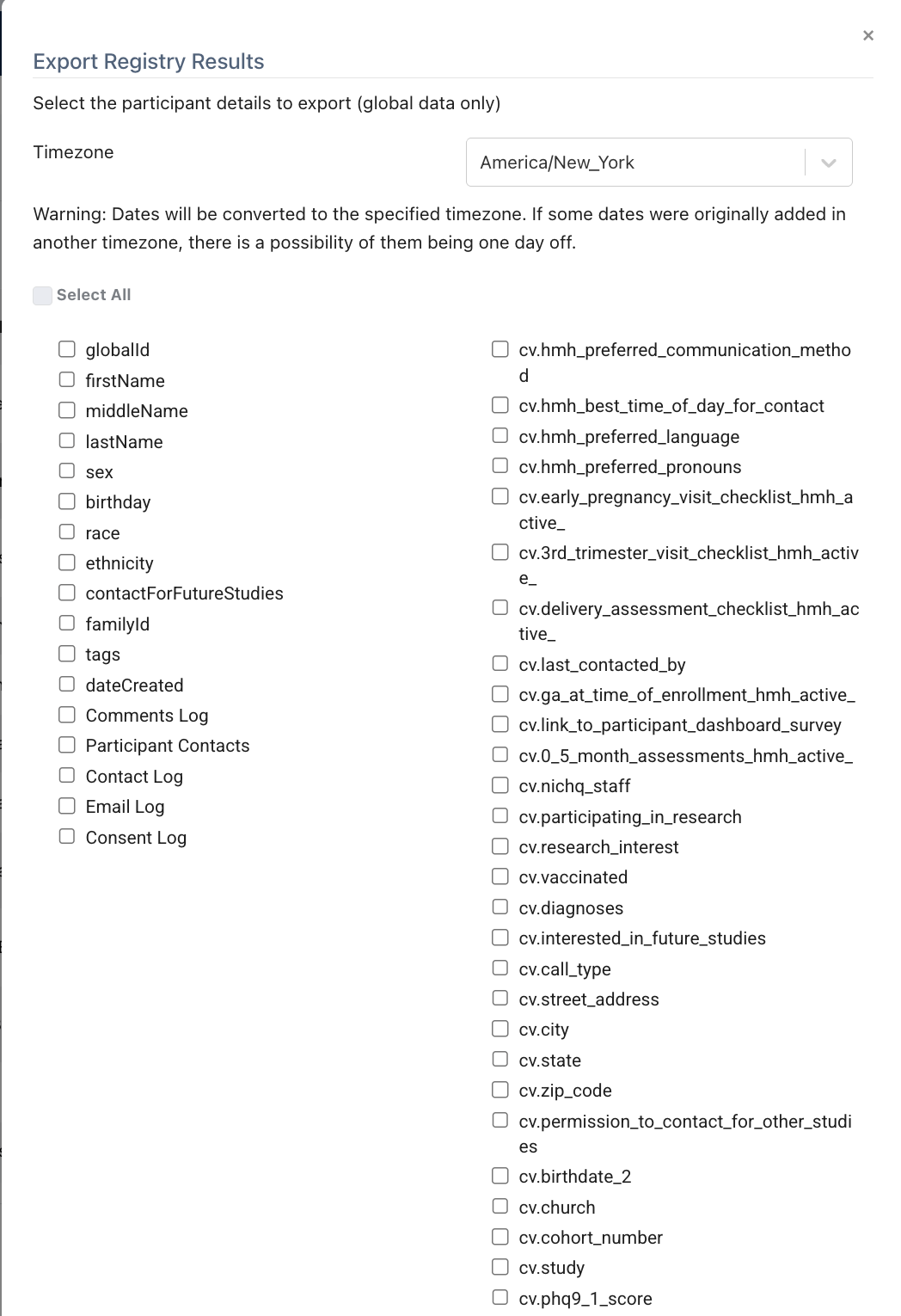
- Choose the variables you want to include.
- Select the appropriate Time Zone, especially when exporting date or time variables or when participants are located across multiple time zones.
- Scroll to the bottom of the export window.
- Select Download.
NOTE: Registry exports include global participant data only. Study-specific data and study-level Custom Variables are not available from this export. Only Global Custom Variables can be selected.