
Site Admins can archive surveys, thus deactivating the surveys. The surveys would be inaccessible to respondents (externally as web forms) while retaining the survey for reference. Surveys can be reactivated by unarchiving.
- Deactivating the survey without deleting permanently.
Archive or Restore a Survey in EnrollNow
Site Admins can archive a survey to stop new submissions while keeping the survey and its completed responses available for reference. Unarchive a survey to make it available again.
Archive a survey
- In the study, go to Study Settings and open Survey Creator.
- Select the survey from the List of Surveys.
- Click Archive to the right of the Survey in the Actions column.
- When prompted, click Yes, archive it.
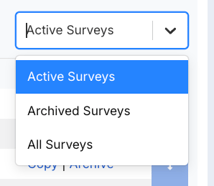
The survey moves to Archived Surveys, where you can edit, unarchive, or delete it. Use the drop-down menu above the Actions column to switch views. Select Active Surveys to see only active surveys or All Surveys to see both active and archived surveys.
Unarchive a survey
- In Survey Creator, click the drop-down menu above the Actions column and choose Archived Surveys or All Surveys to view the list of studies.
- Select the survey you want to restore and click Restore to the right of the survey name in the Actions Column.
- In the Restore confirmation window, click Yes, unarchive it.
The survey returns to Saved Surveys and is available for use again.
IMPORTANT INFORMATION:
What happens when you archive a survey?
- Internal surveys. The survey is removed from the options under Survey Participant and Survey This Participant.
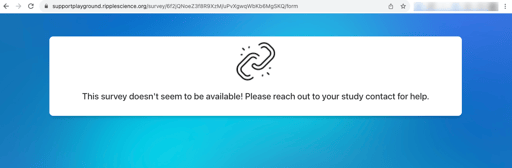
- External survey links. Anyone who opens an archived survey link from an email, text message, or QR code sees a message that the survey is unavailable.
- Completed responses. You can still view and download completed surveys from the Forms Log in a participant’s profile or export responses in bulk using the Export Tool.
- Copied or imported studies. When you copy a study or import its settings, archived surveys appear in Archived Surveys in the new study. You can manage those copies independently of the original study.
This allows flexibility to manage surveys without losing historical data.