
EnrollNow allows users to export and import Study Settings to help streamline study start-up, replicate study configurations, and share best practices across teams. This feature can also be helpful when sharing study configuration files with EnrollNow Support for troubleshooting or review.
Exporting and importing Study Settings can save time when building similar studies, moving configurations between EnrollNow sites, or creating a new study based on an existing setup.
Settings Available for Export and Import
The following study components can be exported and imported:
- Study Details
- Statuses
- Events
- Requirements, including demographic settings and custom variables
- Contact Relationship Values
- Contact Outcome Values
- Bulk Tasks
- Email Templates
- Text Templates
- Surveys
NOTE:
The following items are also not available for export or import:
- Recruitment pages
- Display Settings
- Site-level settings, such as Users and Permissions, Security, and General Settings
These exclusions help ensure that study-specific configurations can be shared while site-level settings and permissions remain securely managed within each EnrollNow site.
How to Export a Study
To export Study Settings:
- Confirm that you have Study Admin access for the study you want to export.
- Use the Studies dropdown to select the study.
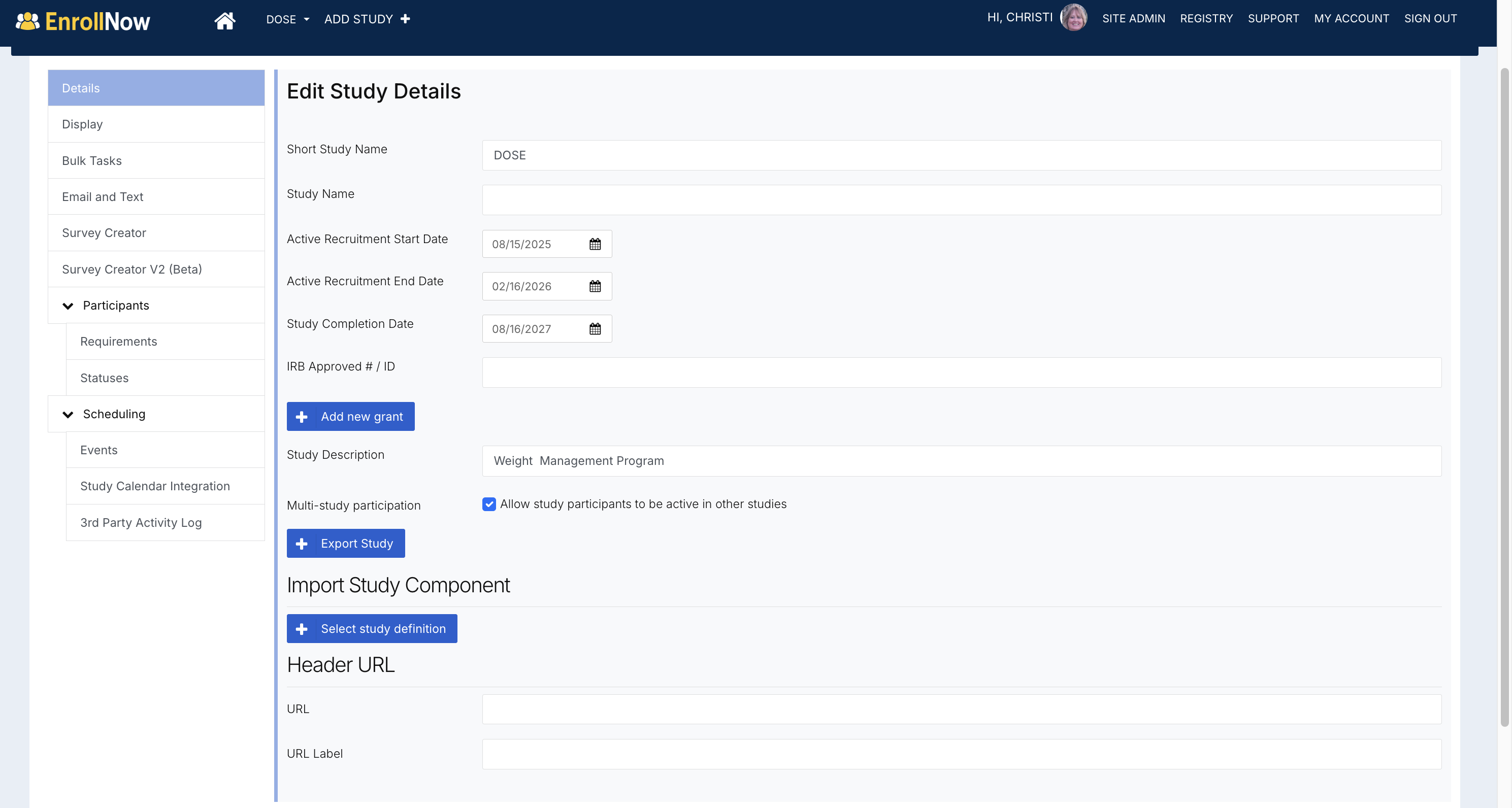
- Navigate to Study Settings.
- Open the Details page.
- Click Export Study.
- A study settings file will download to your computer.
The exported file can be used to:
-
Import into another EnrollNow site
- Used for study replication in your current EnrollNow site
- Used to send for troubleshooting and review by the EnrollNow team
How to Import a Study
To import Study Settings into EnrollNow:
- Confirm that you have Site Manager or Site Admin permissions for the EnrollNow site where the study will be imported.
- Open the EnrollNow site where you want to create the imported study.
- Click Add Study.
- Enter a short name for the new study.
- Click Import Study.
- Select the exported JSON file from your computer.
- When prompted, confirm the import by clicking Yes, import and create study.
- Navigate to your study list and select the newly imported study.