The Survey Designer in EnrollNow allows you to customize what participants see after submitting a survey. You can display a personalized completion message, redirect participants to another webpage, or configure different completion experiences based on their survey responses.
These options can help you thank participants, provide next steps, share additional resources, or communicate eligibility information.
Customizing the Survey Completion Message
By default, EnrollNow displays a standard thank-you message after a participant completes a survey. You can replace this message with custom text and optional HTML formatting.
Step 1: Open the Survey Settings
- Open the survey or create a new survey in the Survey Creator.
- Click on the Title of the survey on the designer tab.
Step 2: Scroll down to "Thank you" page
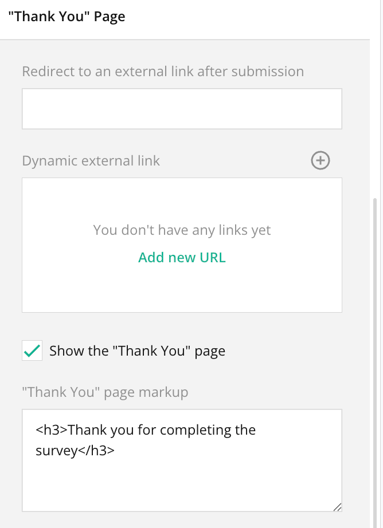
- In the Properties sidebar, scroll to the "Thank you" page section.
- Confirm that Show the Thank you page box is checked.
Step 3: Enter the Completion Message
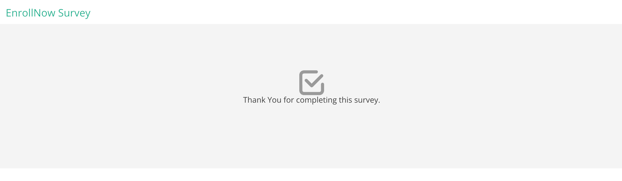
In the "Thank You" page markup field, enter the message participants should see after submitting the survey.
For example:
<h3>Thank You for completing the survey</h3>
Step 4: Format the Message with an HTML
Or you may choose to use HTML to customize the appearance of the completion message, including headings, spacing, colors, links, and other formatting.
For example:
<h3>Thank You for Participating!</h3> <p>We appreciate your time and effort in completing this survey.</p> <p style="color: blue;"> For more information, visit our <a href="https://example.com">study website</a>. </p>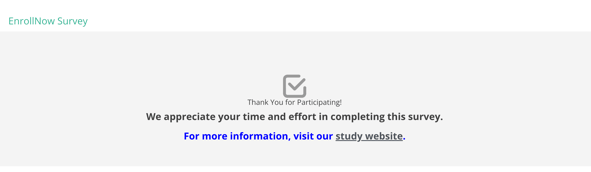
Step 5: Save and Test the Survey
- Save Survey by clicking the green Disk icon.
- Preview or test the survey.
- Submit a test response to confirm that the completion message appears as expected.
Benefits of a Custom Completion Message
A customized completion message can help you:
- Thank participants for their time
- Provide instructions or next steps
- Share links to study resources
- Reinforce study branding
- Improve the overall participant experience
Redirecting Participants After Survey Completion
Instead of displaying only a completion message, you may redirect participants to another webpage after they submit the survey.
This can be useful for directing participants to:
- A study website
- Scheduling or registration pages
- Additional study resources
- Educational materials
- Information about next steps
How to Add a Completion Redirect
- Open the survey in the Survey Creator.
- Select a survey.
- Click on the Title of the Survey.
- In the Properties sidebar on the right, scroll to the "Thank You" page section.
- Locate the Redirect to an external link after submission field.
- Enter the complete URL for the webpage participants should visit.
- Scroll to top of survey to click the green disk icon to Save Survey.
- Test the survey to confirm that the redirect works correctly.
Be sure to include the full URL, including https://.
Customizing Completion Messages or Redirects Based on Survey Responses
EnrollNow also allows you to create different completion experiences based on how a participant answers a survey question.
You can use:
- Dynamic "Thank You page Markup" to display different Thank you pages based on conditions.
- Redirect to an external link after submission to redirect participants to different webpages
- Markup to show if the user already filled out this survey to display if a participant has already completed this survey.
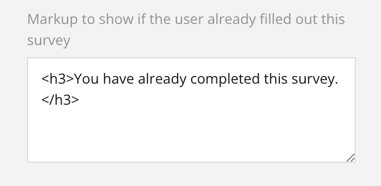
This can be helpful when you need to:
- Display different eligibility messages
- Provide different next steps
- Direct participants to specific resources
- Redirect only participants who meet certain criteria
Example: Redirecting Participants Based on a Rating
In this example, participants who select a rating of 5 or higher will see a custom thank-you page and then be redirected to an informational webpage. Participants who select a rating below 5 will see only the thank-you page.
Step 1: Create the Rating Question
- Add a Rating Scale question to the survey.
- Change the Question Name to:
rating
- Enter the participant-facing question in the Question Title field.
- Scroll down to the Rating Values section.
- Set the Maximum Rating Value to
10. - Select Save Survey.
Step 2: Create the Completion Message
- Click on the Survey Title.
- Scroll to the "Thank you" Page section.
- Confirm that Show the Thank you page box is checked.
- Enter the desired message in the Completed HTML field.
For example:
<h3>Thank You!</h3> <p>Your survey has been successfully submitted.</p>Step 3: Create the Conditional Redirect
- Locate Dynamic "Thank You" Page Markup
- Click the plus sign to Add New.
- Click wand in the upper right above the Expression field.
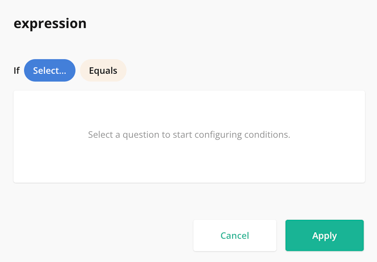
- Expression Builder will open.
- Enter the expression: If, select the Question Name. Question Name is Rating.
- Click on the Equals and choose "greater than or equal to 5"
Participants who select a rating of 5 or higher will be redirected to the specified URL. Participants who select a rating below 5 will remain on the completion page.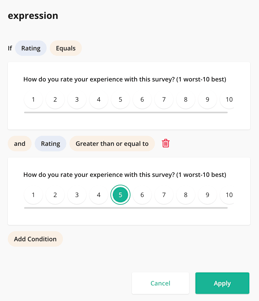
- Click on the Title of the Survey.
- Scroll back to "Thank You" page, if needed.
- Under Dynamic "Thank You" page markup.
- Click the pencil for the expression just created to edit.
- Click in the HTML markup field.
- Enter the URL participants should be redirected to when the condition is met in the HTML markup field .
- Save Survey.
Testing Conditional Completion Settings
Always test each possible survey path before distributing the survey.
When testing, confirm that:
- The correct completion message appears
- The conditional expression uses the correct question name
- The redirect occurs only when the condition is met
- The destination URL opens successfully
- Participants who do not meet the condition remain on the intended completion page
Important Considerations
- Use the question’s Name in conditional expressions, not its title.
- Include
https://when entering redirect URLs. - Test all completion conditions before publishing or distributing the survey.
- Avoid including sensitive participant information in completion messages or destination URLs.
Other Messages
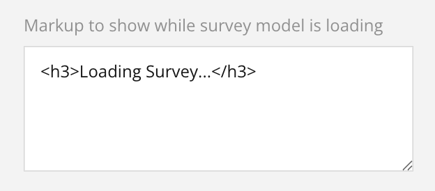
Markup to show while survey modal is loading will appear if Surveys that contain a large number of questions, images, or other graphics take a few additional moments to open.