
EnrollNow can send an email notification when a participant completes a Web survey. These notifications help study teams confirm that a survey was submitted and quickly identify the participant associated with the response.
How Survey Completion Notifications Work
When a participant submits a Web survey, designated EnrollNow users receive an email notification immediately after submission.
The notification can help your team:
- Confirm that the survey was successfully submitted
- Identify which participant completed the survey
- Review the participant’s responses
- Follow up with the participant when needed
IMPORTANT NOTE:
- Email completion notifications are available only for Web surveys. Surveys completed as Internal surveys do not generate an email notification.
Set Survey Submission Email Notifications for a User
To receive email notifications when external surveys are completed:
- Select My Account in the upper-right corner of EnrollNow.
- Scroll to the Studies, Roles, and Email Notifications section.
- Under Survey Submissions, select the checkbox for each study for which you would like to receive notifications.
After the checkbox is selected, you will receive an email notification whenever an external survey associated with that study is completed.

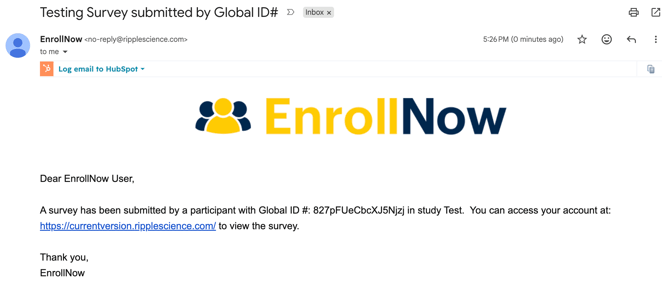
Notification Email Details
Survey completion notifications are sent from:
no-reply@enrollnow.com
The email includes:
- Confirmation that a survey was submitted
- The name of the completed survey
- The participant’s Global ID
The Global ID can be used to locate the participant’s profile in EnrollNow.
Reviewing the Completed Survey
Step 1: Locate the Participant
- Copy the participant’s Global ID from the notification email.
- In EnrollNow, open the Registry, Potential Participants, or Enrolled Participants page.
- Paste the Global ID into the search bar.
- Select the participant to open their profile.
Step 2: Open the Forms Section
- From the participant’s profile, navigate to the Forms section.
- Review the list of surveys and forms associated with the participant.
Step 3: Review the Survey Responses
- Locate the completed survey.
- Select the survey to open it.
- Review the participant’s submitted responses.
Using email notifications allows your team to quickly locate completed survey data and take any necessary follow-up action.