
Personalizing Text Messages with Variables in EnrollNow
EnrollNow allows you to personalize participant text messages by inserting variables into text message templates. Variables act as placeholders that automatically populate with participant-specific, study-specific, or event-specific information when the text message is sent.
Using variables can help your team send clear, personalized text messages without manually editing each message for each participant.
For example, instead of typing a participant’s name into each text message, you can insert the participant first name variable. When the text message is sent, EnrollNow will replace the variable with the participant’s actual first name.
Common Uses for Text Message Variables
Text message variables can be used to personalize messages with information such as:
- Participant first name
- Participant last name
- Participant custom ID
- Participant global ID
- Study name
- Current user information
- Next appointment name
- Next appointment date
- Specific scheduled event dates
- Custom variable values, when available
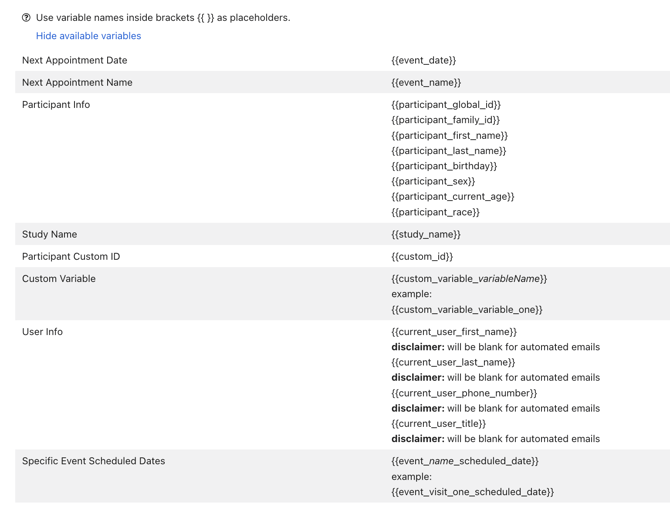
Available Text Message Variables
The variables available to your team may depend on your study configuration and the fields available in your EnrollNow site.
Commonly used variables include:
Participant and Study Information
-
- Inserts the participant’s first name.
-
- Inserts the participant’s last name.
-
- Inserts the custom identifier assigned to the participant.
-
- Inserts the unique global ID assigned to the participant.
-
- Inserts the name of the study the participant is enrolled in.
-
- Inserts the name of the EnrollNow user sending the text message.
Appointment and Event Information
-
- Inserts the name of the participant’s next scheduled study visit.
-
- Inserts the date of the participant’s next scheduled appointment.
-
- Allows you to reference the scheduled date for a specific event, even if that event is not the participant’s next upcoming event.
When using appointment or event variables, make sure the related event is scheduled on the participant’s profile. These variables rely on confirmed scheduled event dates. If the event is only expected and has not been scheduled, the variable may not populate as intended.
You can use more than one event variable in a single text message if you need to reference multiple upcoming events. Keep in mind that adding multiple variables may increase the length of the text message.
How to Add Variables to a Text Message
Variables can be only be added to text message templates using the Show Available Variables option.
Add Variables Using the "Show Available Variables" List
The Show Available Variables list, located beneath the text workspace, allows you to view available variables and copy them into your text template.
Step 1: Add a Text Template
-
Open the Email and Text tab.
-
Click Add Template.
- Name the Template
- Add a Description (optional)
- Type the Text Message
Step 2: Open the Available Variables List
-
Below the text message area, locate the blue hyperlink labeled "Show Available Variables" list.
-
Click "Show Available Variables" to open the list of available variables.
Step 3: Copy the Variable
-
Review the list and find the variable you want to use.
-
Copy the variable exactly as it appears in the list.
-
If you are using an event-specific variable, make sure you select or format the variable for the correct event.
Step 4: Paste the Variable into the Text
-
Paste the copied variable into the text box.
-
For example:
Hi , this is a reminder for your upcoming study appointment on .
Step 5: Confirm the Variable Displays Correctly
-
Click Message box.
-
The variable should remain in the correct format and will populate with the corresponding participant, study, or event information when the text is sent.
Important Notes About Text Message Variables
Variables must be copied from Show Available Variables and pasted into the text message body exactly as they appear.
Typing regular text into the message will not pull participant information into the text.
For example, typing “John” will send the word “John” to every recipient. To personalize the message for each participant, use the participant first name variable instead.
When using event or appointment variables, confirm that the related event is scheduled on the participant’s profile. If the event is not scheduled, the variable may not populate correctly.
Before sending a text message to participants, review the message carefully to confirm that the variables are correct and the message is clear.
Text Message Length Considerations
When using variables in text messages, remember that the final message length may change after the variables populate with participant-specific information.
For example, a participant with a longer name or a longer event name may increase the total character count of the message.
Before sending a bulk text message or automated text message, review the message length and keep the wording as concise as possible. This helps reduce the risk of the message exceeding text message length limits.