
EnrollNow Surveys provide enhanced control over participant status assignment based on survey responses. With the survey creator, researchers can assign participants to multiple statuses based on their survey responses.
Adding a Hidden Participant Status
You must first add Participant Status as a question and ensure it remains hidden, preventing participants from altering it.
Permissions Required: Study Admin
Step 1: Access the Survey Creator
-
Navigate to the Study Settings tab.
-
Select Survey Creator.
-
Open the survey you want to modify.
Step 2: Add a Question
-
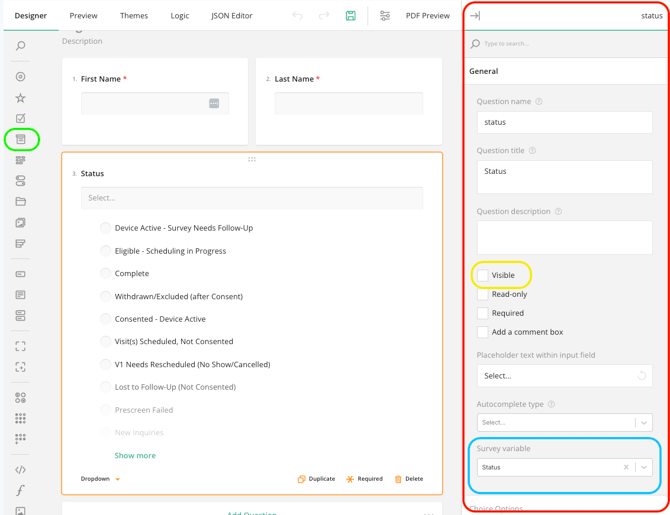
From the Question Types menu, select the Dropdown question type (green).
-
(Alternatively, a Radiogroup question type can also be used.)
-
Step 3: Configure the Question Properties
- Open the Dropdown Question Properties panel (red).
- Under the Survey Variable dropdown, select “Status” (blue).
- Uncheck the Visible checkmark to keep the question hidden from participants (yellow).
By following these steps, you ensure that participant status is set automatically without their input, enabling controlled status assignments based on survey responses.
Adding Logic to Assign Status Automatically
Once the Status question is hidden, you can create automated logic to assign participants to different statuses based on their survey responses.
Steps to Set Up Status Logic:
-
Navigate to the "Logic" Tab in the Survey Designer.
-
Click “Add New Rule” to create a new logic rule.
-
-
Use Survey Logic to Set Status Based on Conditions:
-
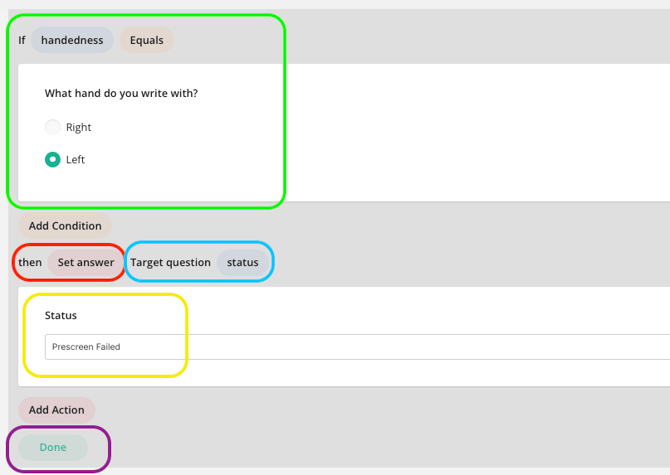
Create logic statements to specify the questions and answers that determine whether a participant meets inclusion criteria (green).
-
Tip: Use “And” or “Or” operators to combine multiple conditions.
-
-
Under Select action... select “Set Answer" (red).
- Choose the Status question (blue).
- Assign the appropriate status based on the defined conditions (yellow).
- Click “Done” (purple).
- Repeat these steps as needed to create paths for different statuses.
-
Setting a Default Value for Status if Needed
You may wish to also set a default value for status. A default value is useful when:
-
You want a fallback status for anyone who completes the survey but does not meet the logic rules you created, or if your logic doesn't work as expected.
- You don't require logic to determine status and want everyone who completes the survey to go to the same status.
Steps to Set a Default Value for Status:
-
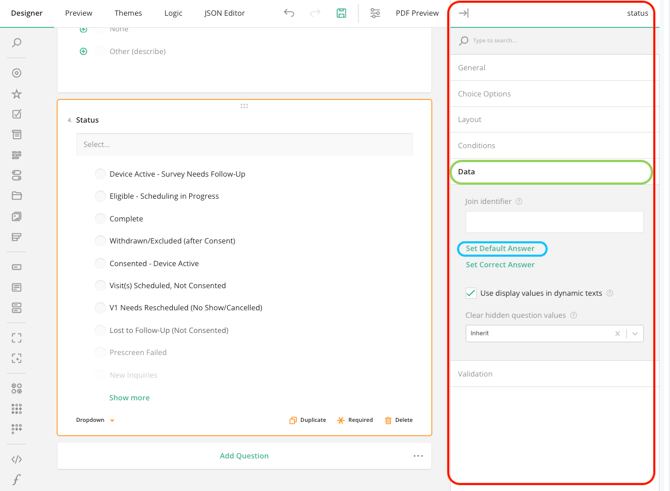
Navigate to the Properties Panel for your status question in the survey designer (red).
-
Locate the "Data" menu (green)
-
Select "Set Default Answer" (blue)
-
In the pop-up window, select the status you wish to be the default status.
-
Note: If you have survey logic in place, the survey logic will override the default status.
-
-
Click "Apply."
Finalize and Save the Survey:
Click the “Save” icon to apply all changes.

By following these steps, participants will be automatically assigned to the correct status based on their survey responses, improving efficiency and precision in study enrollment.